How to Extract PDF Invoice Data to Google Sheets Automatically
Every accountant, freelancer, and small business owner knows the drill. An invoice lands in your inbox as a PDF attachment. You open it, find the total, the VAT number, the vendor name, the due date - and then you manually type all of it into a spreadsheet.
It takes maybe three minutes per invoice. Until you have 40 invoices a month. Then it’s two hours of your life, gone, doing something a computer should be doing for you.
This guide covers the realistic options for automating PDF invoice extraction to Google Sheets - from the manual workarounds to the tools that actually solve the problem. If you need to convert PDF invoice to Google Sheets data, keep reading.
Why Manual Data Entry From PDFs Is a Real Problem
The obvious issue is time. But the less obvious issue is accuracy.
When you’re manually copying numbers from a PDF, the error rate is not zero. A transposed digit in an invoice amount, a wrong date, a missed line item - these errors don’t always surface immediately. They hide in your spreadsheet and cause problems later: at tax time, during an audit, or when you’re trying to reconcile accounts that simply don’t add up.
The root cause is that PDFs were designed for printing, not for structured data. They look like a table, but they’re just positioned text on a canvas. There’s no standard way to execute PDF invoice data extraction accurately by simply copy-pasting every invoice template is different.
The Traditional Approaches (And Why They Fall Short)
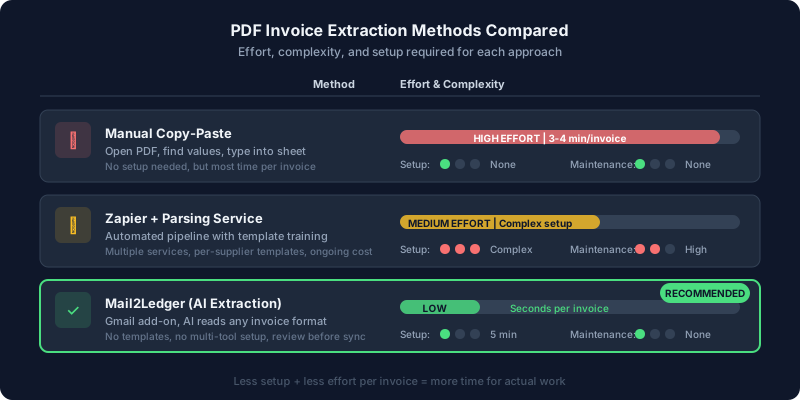
Copy and paste
The most basic approach. Open the PDF, select the text, paste it into the spreadsheet. This works - until the PDF is a scanned image, or the layout is complex, or you have 20 of them waiting in your inbox.
Dedicated OCR tools
Standard OCR (Optical Character Recognition) software can convert PDF text to machine-readable content. To effectively convert PDF invoice to Google Sheets text, tools like Adobe Acrobat, ABBYY FineReader, or various online converters let you pull strings from the page. However, you still need to map the right values to the right columns manually. And when a supplier changes their invoice template, typical PDF invoice parser rules simply break.
Zapier + parsing services
You can build a Zapier workflow that watches your Gmail for attachments, sends them to a parsing service like Parseur or Docparser, and pushes the results to Google Sheets. This works, but it requires:
- Setting up and maintaining the Zapier workflow
- Training a parsing template for each supplier
- Paying for multiple services simultaneously
- Fixing everything when a supplier updates their invoice layout
The Direct Approach: AI-Powered Extraction From Gmail
The cleaner solution is a Gmail add-on that acts as a modern PDF invoice parser natively - it reads the PDF attachment, understands it using Gemini AI, and syncs the extracted data to your Google Sheet without mapping errors.
This is exactly what Mail2Ledger does.
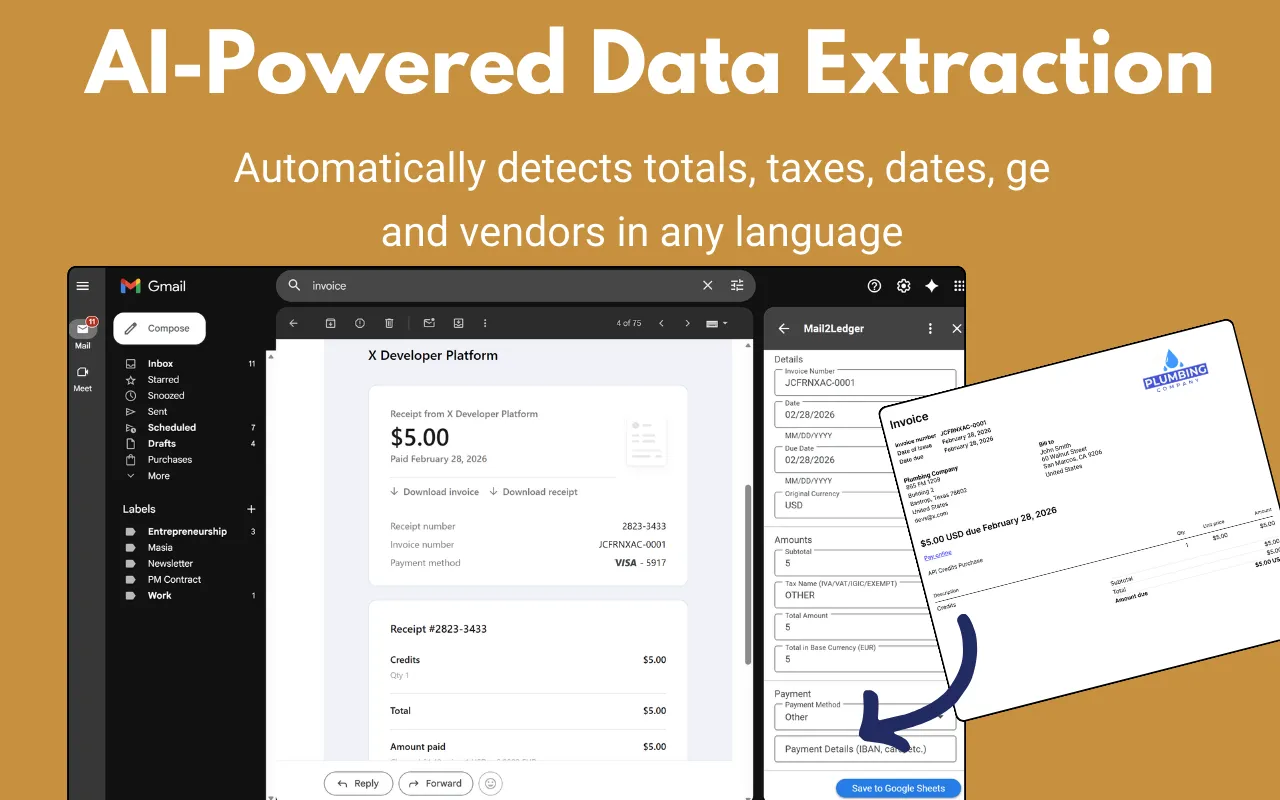
Instead of relying on rigid OCR templates to process PDF invoice extraction, Mail2Ledger uses Gemini AI to understand the invoice - the way a human would. It reads the document in context, identifies the relevant fields (amount, tax, vendor, date, payment terms), and reliably maps PDF invoice to Google Sheets. It handles different invoice formats from different suppliers without needing any configuration per vendor.
The workflow looks like this:
As an email body or PDF attachment.
No new tab, no separate tool.
In seconds vendor, date, amounts, VAT, line items.
Make any corrections if needed before committing.
The row appears in your ledger instantly.
No Zapier. No parsing templates. No copy-paste. No subscription to three different services.
What Data Gets Extracted
A typical invoice extraction with Mail2Ledger captures:
- Vendor name - the company or individual who issued the invoice
- Invoice date and due date
- Invoice number - useful for cross-referencing
- Line items - descriptions and individual amounts
- Subtotal, tax amount (VAT), and total
- VAT number - critical for tax compliance in many jurisdictions
- Currency - especially useful if you deal with international suppliers
All of this goes into designated columns in your Google Sheet, so your ledger stays clean and consistent.
Who Benefits Most
This kind of automation makes the biggest difference for:
- Freelancers and contractors who receive invoices from multiple clients and need clean records for quarterly tax filings
- Small business owners who deal with supplier invoices weekly and want their bookkeeping current without hiring an accountant for data entry
- Accountants and bookkeepers who manage multiple clients’ inboxes and need to process high volumes of invoices efficiently
- Virtual assistants who handle financial administration for their clients and need to scale without adding hours
The Bottom Line
If you’re still manually copying data from PDF invoices into spreadsheets, the automation exists - it’s just a matter of choosing the right level of complexity. For most people working in Gmail with Google Sheets, a native Gmail add-on that handles the extraction directly is the path of least resistance.
Mail2Ledger is free during early access and installs in a few clicks from the Google Workspace Marketplace. If you process more than a handful of invoices per month, it’s worth trying.